“I can never stand still,”
“I must explore and experiment,”
I am never satisfied with my work,”
“I resent the limitations of my own imagination.”
-- Walt Disney –
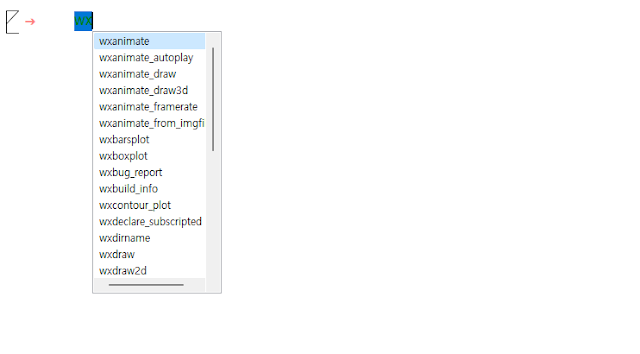
Pressing Ctrl+Space or Ctrl+Tab starts an autocomplete function that can not only complete all functions that are integrated into the Maxima core and their parameters: It also knows about parameters from currently loaded packages and from functions that are defined in the current file. Ctrl+스페이스 또는 Ctrl+탭을 누르면 Maxima 코어에 통합된 모든 함수와 해당 매개변수를 완성할 수 있는 자동 완성 기능이 시작됩니다: 또한 현재 로드된 패키지와 현재 파일에 정의된 함수의 매개변수에 대해서도 알고 있습니다.
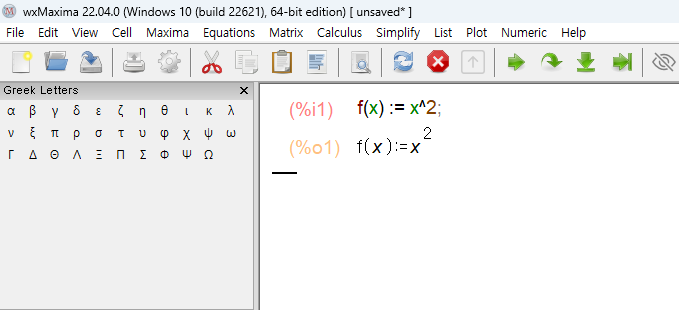
Besides the global undo functionality that is active when the cursor is between cells, wxMaxima has a per-cell undo function that is active if the cursor is inside a cell. Pressing Ctrl+Z inside a cell can therefore been used for a fine-pitch undo that doesn't affect latter changes made in other cells. 커서가 셀 사이에 있을 때 활성화되는 전역 실행 취소 기능 외에도 커서가 셀 내부에 있을 때 활성화되는 셀별 실행 취소 기능이 있습니다. 따라서 셀 내부에서 Ctrl+Z를 누르면 다른 셀에서 나중에 변경한 내용에 영향을 주지 않는 미세 실행 취소를 수행할 수 있습니다.
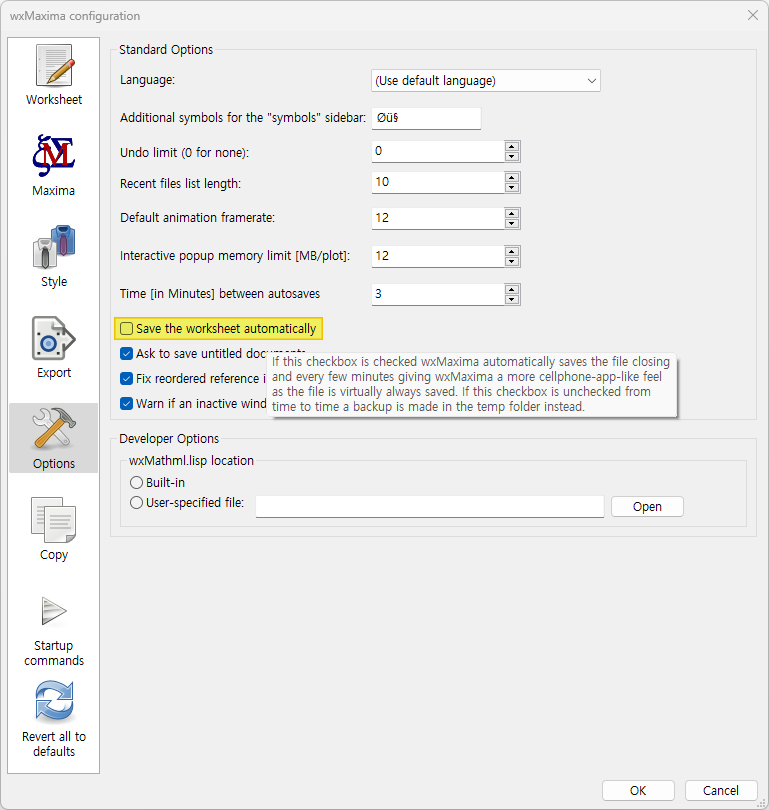
If the "Autosave" functionality is enabled in the configuration dialogue wxMaxima acts like mobile apps that backup the file every few minutes and save it on closing. wxMaxima confuguration 대화 상자에서 '자동 저장' 기능을 활성화하면 wxMaxima는 몇 분마다 파일을 백업하고 닫을 때 저장하는 모바일 앱처럼 작동합니다. Edit > Configure > Options check Save the worksheet automatically wxMaxima configuration
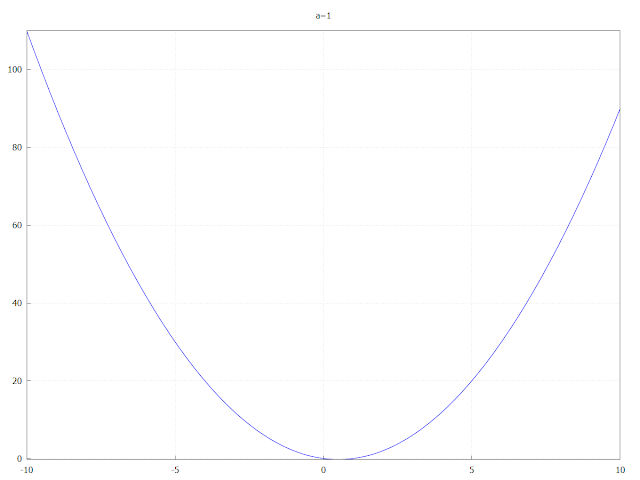
n order to visualize how a parameter affects an equation wxMaxima provides commands that start with "with_slider_" and that create animations. One example would be: with_slider_draw( a,[-16,-9,-4,-2,0,1,2,3,4,5,6,7], title=concat("a=",a), grid=true, explicit( x^2-a*x, x,-10,10 ) );
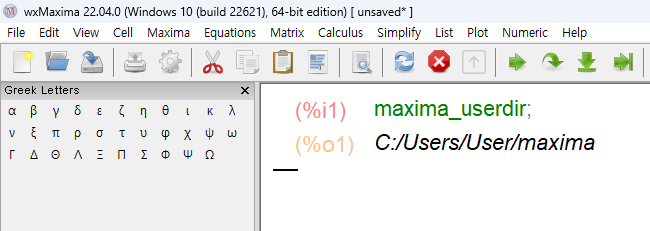
wxMaxima can be made to execute commands at every start-up by placing them in a text file with the name wxmaxima.rc in the user directory. This directory can be found by typing maxima_userdir; 사용자 디렉터리에 wxmaxima.rc라는 이름의 텍스트 파일에 명령을 저장하여 시작할 때마다 명령을 실행하도록 wxMaxima를 설정할 수 있습니다. 이 디렉토리는 maxima_userdir을 입력하면 찾을 수 있습니다;
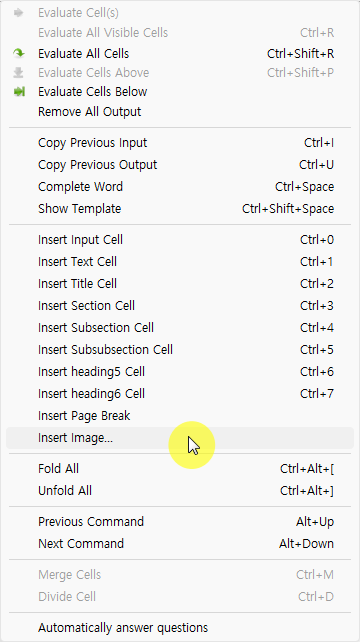
Since wxMaxima 0.8.2 you can also insert images into your documents. Use 'Cell->Insert Image...' menu command. image copy and paste also can do insert image
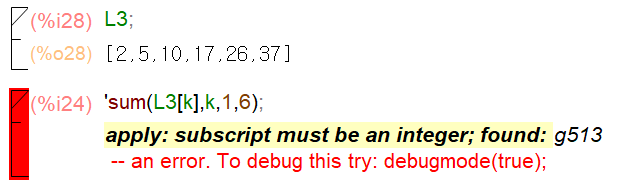
the '[]' operator tried to extract an element of a list, a matrix, an equation or an array. But instead of an integer number something was used whose numerical value is unknown or not an integer. Floating-point numbers are bound to contain small rounding errors and therefore in most cases don't work as an array index thatneeds to be an exact integer number. '[]' 연산자가 목록, 행렬, 방정식 또는 배열의 요소를 추출하려고 시도했습니다. 그러나 정수 대신 숫자를 알 수 없거나 정수가 아닌 다른 숫자가 사용되었습니다. 부동 소수점 숫자는 작은 반올림 오차를 포함할 수밖에 없으므로 대부분의 경우 정확한 정수여야 하는 배열 인덱스로는 작동하지 않습니다.
combination of commands using the dollar sign ($) to end each command except the last one. eigenvalues(E)$float(%),numer$rectform(%); Typically, we use the semi-colon (;) to end a Maxima command. If you use the dollar sign ($), instead of the semi-colon (;), the command is executed, but no output is shown. In the previous line, thus, the 'eigenvalues’ and the 'float' commands are executed, but no output is shown until the last command 'rectform' is executed. This way, we skip all the detailed outputs of the first two commands. One more simplification we can do is to reduce the number of digits shown in floating point. By default, up to 16 digits are shown in floating point results. You may want to reduce the number of digits to, say, 6, by using: Numeric > Set displayed Precision... Type a 6 in the resulting form.
Characteristic Polynomial The eigenvalue problem for a square matrix A consists in finding the values λ(eigenvalues) and vectors x (eigenvectors) that satisfy the eigenvalue equation: A*x = λ*x, or equivalently, (A-λ*I)*x=0, where I is the identity matrix of the same size as A. A non-trivial solution to the problem results if Det(A-λ*I)=0. The term Det(A-A*l) represents the Characteristic Polynomial of the problem. The roots of that polynomial are the eigenvalues. The menu option ‘Matrix > Characteristic Polynomial...’ produces this entry form, which we modify to read: 특성 다항식 정사각형 행렬 A의 고유값 문제는 고유값 방정식을 만족하는 값 λ(고유값)과 벡터 x(고유벡터)를 구하는 것으로 구성됩니다: A*x = λ*x, 또는 이에 상응하는 (A-λ*I)*x=0, 여기서 I는 A와 같은 크기의 행렬입니다. Det(A-λ*I)=0이면 문제에 대한 간단한 해가 나옵니다. Det(A-A*l)이라는 용어는 문제의 특성 다항식을 나타냅니다. 이 다항식의 근은 고유값입니다. '행렬 > 특성 다항식...' 메뉴 옵션은 이 입력 양식을 생성합니다, 이를 수정하여 읽습니다:
Title, section and subsection cells can be folded to hide their contents. To fold or unfold, click in the square next to the cell. If you shift-click, all sublevels of that cell will also fold/unfold. 제목, 섹션 및 하위 섹션 셀을 접어서 내용을 숨길 수 있습니다. 접거나 펼치려면 셀 옆의 사각형을 클릭합니다. Shift+클릭하면 해당 셀의 모든 하위 수준도 접히거나 펼쳐집니다.
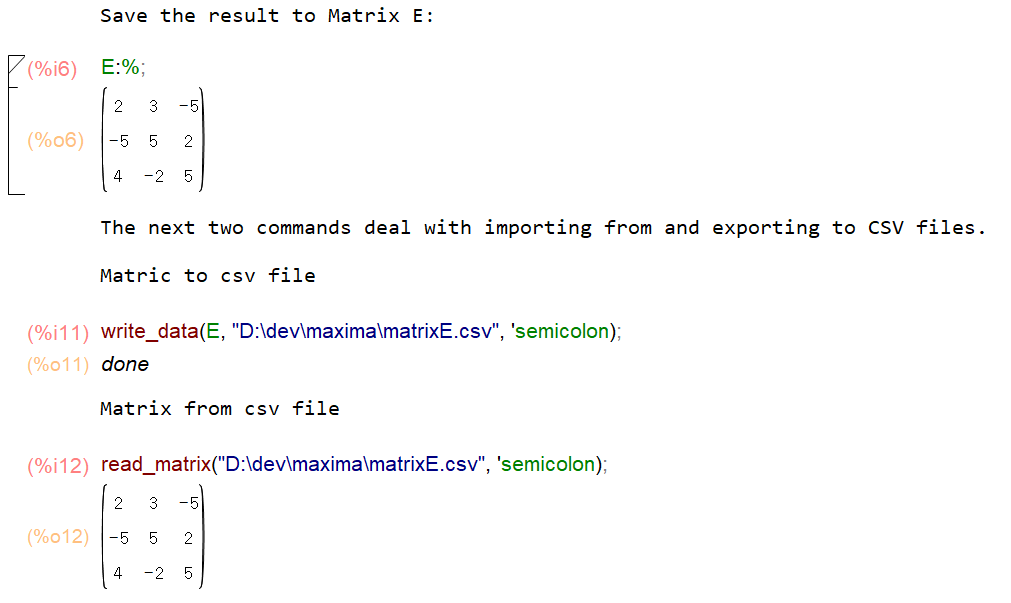
The next two commands deal with importing from and exporting to CSV files. Matric to csv file write_data(E, "D:\dev\maxima\matrixE.csv", 'semicolon); Matrix from csv file read_matrix("D:\dev\maxima\matrixE.csv", 'semicolon);
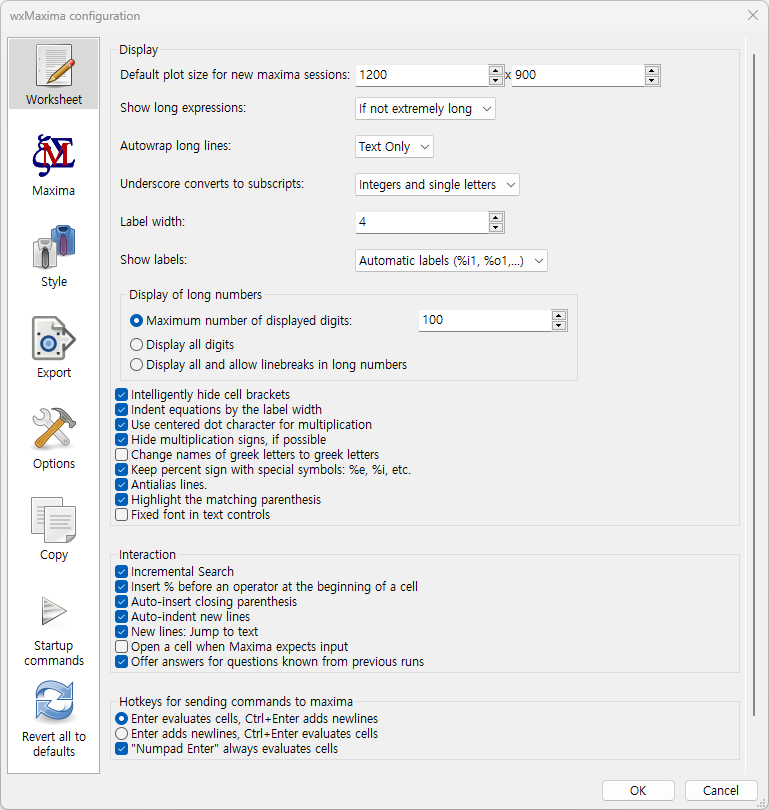
If you type an operator (one of +*/^=,) as the first symbol in an input cell, % will be automatically inserted before the operator, as on a graphing calculator. You can disable this feature from the 'Edit->Configure' dialog. wxMaxima configuration Worksheet > Interaction Insert % before an operator at the beginning of a cell wxMaxima configuration
Maxima supports three types of numbers: exact fractions (which can be generated for example by typing 1/10), IEEE floating-point numbers (0.2) and arbitrary precision big floats (1b-1). Note that, owing to their nature as binary (not decimal) numbers, there is for example no way to generate an IEEE floating-point number that exactly equals 0.1. If floating-point numbers are used instead of fractions, Maxima will therefore sometimes have to introduce a (very small) error and use things like 3602879701896397/36028797018963968 for 0.1. Maxima는 정확한 분수(예를 들어 1/10을 입력하면 생성 가능), IEEE 부동 소수점 숫자(0.2), 임의의 정밀도 큰 부동 소수점(1b-1) 등 세 가지 유형의 숫자를 지원합니다. 부동 소수점은 10진수가 아닌 이진수라는 특성으로 인해 예를 들어 0.1과 정확히 일치하는 IEEE 부동 소수점 숫자를 생성할 수 있는 방법이 없습니다. 따라서 분수 대신 부동 소수점 숫자를 사용하는 경우 Maxima는 때때로 (아주 작은) 오류를 도입하여 0.1에 3602879701896397/36028797018963968과 같은 숫자를 사용해야 합니다.
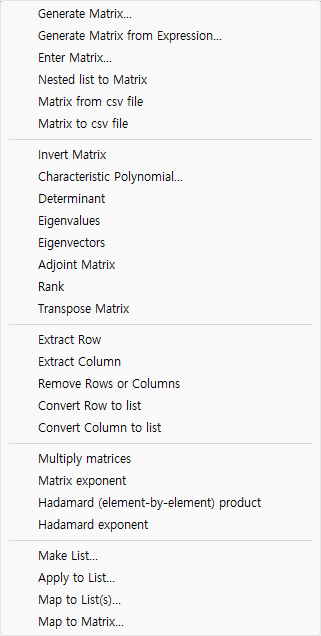
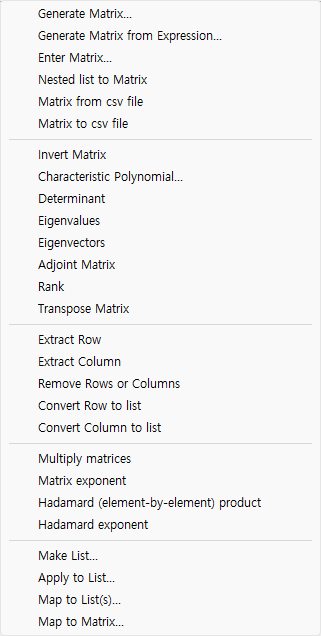
Matrix Matrix menu Generate Matrix... Generate Matrix from Expression... Enter Matrix... type : general, diagonal, symmetric, antisymetric Enter Matrix... type : symmetric Nested list to Matrix
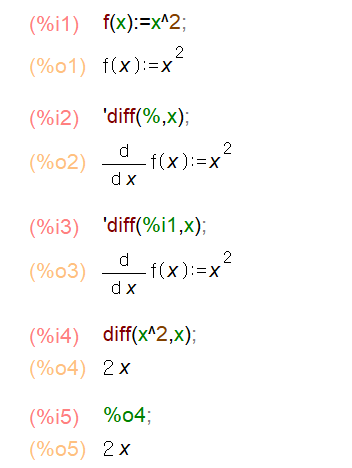
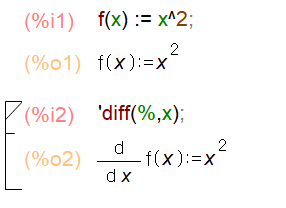
You can access the last output using the variable '%'. You can access the output of previous commands using variables '%on' where n is the number of output. '%' 변수를 사용하여 마지막 출력에 액세스할 수 있습니다. '%on' 변수를 사용하여 이전 명령의 출력에 액세스할 수 있으며, 여기서 n은 출력 번호입니다. example
You can access the last output using the variable '%'. You can access the output of previous commands using variables '%on' where n is the number of output.
Matrix menu Matrix menu Generate Matrix... Generate Matrix from Expression... Enter Matrix.. Nested list to Matrix Matrix from csv file Matrix to csv file Invert Matrix: Characteristic Polynomial... Determinant Eigenvalues Eigenvectors Adjoint Matrix Rank Transpose Matrix Extract Row Extract Column Remove Rows or Columns Convert Row to list Convert Column to list Multiply matrices Matrix exponent Hadamard (element-by-element) product Hadamard exponent Make List. Apply to List.. Map to List(s).. Map to Matrix...